
Free tool
Online PLY viewer
Drop a PLY from a scanner or a modelling program. See it in 3D with its colours, size and triangle or point count.
Runs in your browser. Nothing is uploaded.
How to use it
1Drop the PLY
A binary or ASCII .ply file, mesh or point cloud. Or open a sample: a coloured terrain mesh or a point cloud.
2Turn it in 3D
Drag to orbit, scroll to zoom. If a scan lies on its side, switch Z axis is up off.
3Read the numbers
Width, depth and height in millimetres or inches, plus the triangle count for a mesh or the point count for a point cloud.
4Print it
Convert a PLY mesh to STL with the free STL converter. A point cloud needs a surface built from its points first.
To open a PLY file online, drop it on the viewer above. Meshes appear in 3D with their vertex colours, point clouds appear as points, and the panel gives the size in millimetres or inches and the triangle or point count. It reads binary and ASCII PLY, and nothing is uploaded.
What you see for each kind of PLY
| The file holds | The viewer shows |
|---|---|
| Points and faces (a mesh) | The surface, with volume, surface area and triangle count |
| Points, faces and colours | The surface in the file's own colours |
| Points only (a point cloud) | Every point, the point count, and a note that there is no surface to print |
| Faces with five or more corners | Those faces are skipped; a file made only of them shows an error |
Sizes and units
A PLY file stores numbers with no unit. The viewer reads them as millimetres, so a scan saved in metres shows 1,000 times too small: a 150 mm object reads as 0.15 mm. When you convert it, set the units in the file to metres in the STL converter and the STL comes out at full size.
From a scan to a print
- Check it here. Make sure the scan is complete, the right way up and the size you expect.
- Point cloud? Build a mesh from the points first, with the surface reconstruction step in your scanning or mesh software.
- Convert it. The free STL converter turns a PLY mesh into STL or 3MF in millimetres, placed on the build plate.
- Fix it. Scans often have holes. STL repair closes them and writes a watertight STL your slicer accepts.
Other formats open in the online 3D viewer, which reads STL, OBJ, 3MF, STEP, IGES, GLB and glTF as well. To learn what an STL keeps and loses, read what an STL file is.
Questions
How do I open a PLY file?
Drop it on the viewer above. It opens in your browser with nothing to install, shows the model in 3D with its colours, and gives its size and triangle or point count.
What is a PLY file?
PLY, the Polygon File Format, stores a 3D shape as a list of points (vertices) and, usually, the faces that join them. Each point can carry extra values such as a colour or a normal. 3D scanners and photogrammetry apps often save PLY.
Why does my PLY show dots and not a surface?
It is a point cloud: the file has points but no faces. The viewer shows the points as they are and tells you the file has no surface, because there is nothing between the points to draw.
Can I 3D print a PLY file?
Yes, if it is a mesh. Convert it to STL with the free STL converter and slice the STL. A point cloud cannot be printed as it is: build a mesh from the points first with a surface reconstruction step, then convert that mesh.
Does the viewer show the colours in my PLY?
Yes. Colours stored per vertex or per face are shown as saved. A PLY with no colours is drawn in the colour you pick in the View panel.
Is my scan uploaded?
No. The file is read and drawn in your browser tab and never leaves your computer.
Read next
3D printing
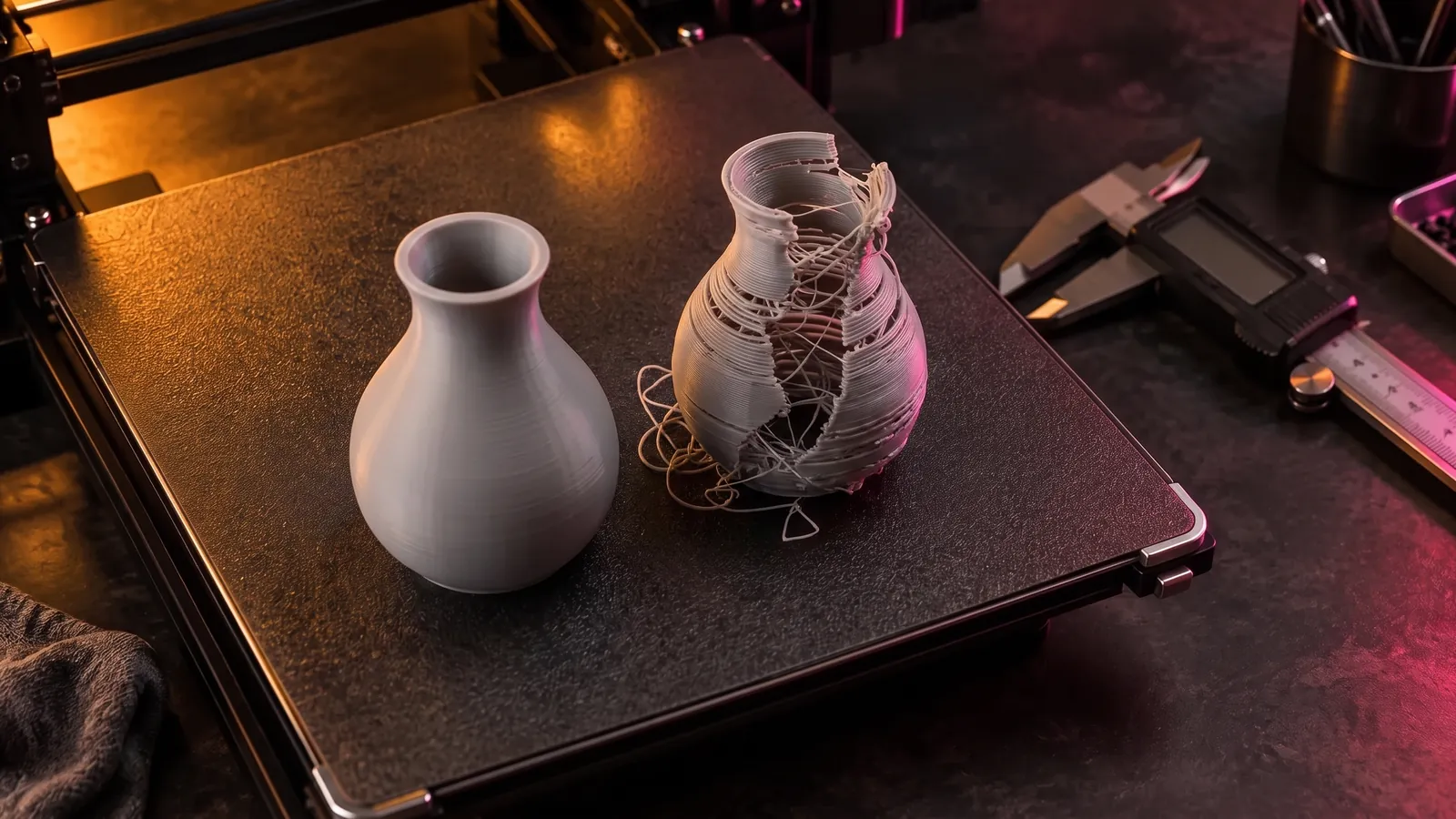
How to Fix STL Files: Holes, Non-Manifold Edges and Other Errors
How to fix STL errors: what open edges, non-manifold edges, flipped normals and self-intersections mean, what your slicer is saying, and the fix for each.
October 8, 2026 8 min read
3D printing
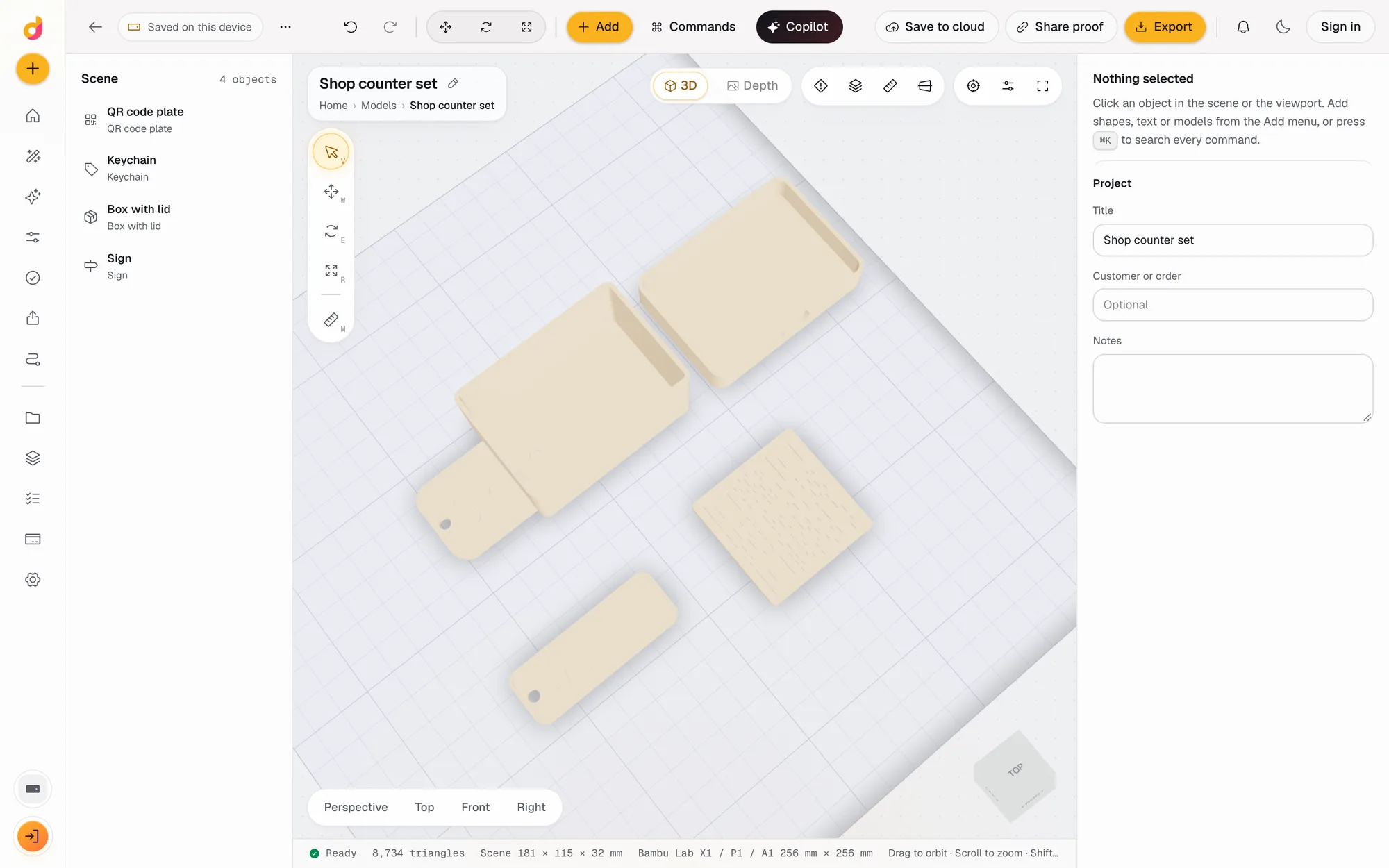
How to Make an STL File: 6 Ways, From Scratch or From What You Have
How to make an STL file for 3D printing for free: model it, build it from settings, turn a photo, logo or text into one, convert a CAD file, or use AI.
November 4, 2026 4 min read
3D printing
The Best STL Viewers for Windows, Mac, Android and iPhone (2026)
Microsoft 3D Viewer left the Microsoft Store on July 1, 2026. Free ways to open STL, OBJ and 3MF files on Windows 11, Mac, Android and iPhone.
September 24, 2026 3 min read