
Free tool
STL file converter
One converter for the common 3D formats. Drop a file, pick the output, download.
Runs in your browser. Nothing is uploaded.
How to use it
1Drop your files
STL, OBJ, GLB, glTF, PLY or 3MF, one file or several, or a zip of them. They are read on your device.
2Check size and orientation
Read the size in millimetres and look at the preview. If the model is tiny, huge or lying on its side, change the units or the up axis.
3Pick the output
STL for any slicer, 3MF to keep parts separate, OBJ or GLB for Blender, game engines and the web, PLY for scan and mesh tools.
4Download
Every part is checked for holes first. Download one file, or one STL per part in a zip.
The converter turns OBJ, GLB, glTF, PLY and 3MF files into STL, and STL into OBJ, GLB, PLY or 3MF, in your browser. Drop the file, check that the size reads right in millimetres and that the model stands upright, then download. Nothing is uploaded.
What converts and what does not
Every format here describes a shape as triangles, so the shape itself always converts exactly. The differences are in what each format can carry alongside it.
| Format | Read here | Written here | What survives |
|---|---|---|---|
| STL | Binary and ASCII, several solids | Binary or ASCII | Triangles only |
| OBJ | Faces, objects and groups | Mesh with part names | Shape and part names |
| GLB and glTF | Meshes and their positions | Binary GLB in metres | Shape and part names |
| PLY | ASCII and binary meshes | Binary | Shape |
| 3MF | Every object on the plate | One object per part | Shape, units and parts |
STL has no standard way to store colour, as the Library of Congress format description notes, so colours, materials, textures and animation stop at STL. Parametric history from CAD never makes it into any of these mesh formats: keep your CAD file as the master and export again when the design changes.
Units: the usual reason a converted file is the wrong size
STL, OBJ and PLY files hold bare numbers. The OBJ specification never mentions units, and slicers simply read STL numbers as millimetres. glTF is different: its specification says all distances are in metres, with +Y up. 3MF writes its unit into the file, millimetres by default.
So the converter reads STL, OBJ and PLY as millimetres, GLB as metres and 3MF in whatever unit it declares. When a model would measure less than half a unit across, it is read as metres instead, and the note under Units says so. Always glance at the size readout before downloading: an 80 mm vase should read 80, not 0.08 or 80,000.
Up axis: why models arrive lying down
Slicers treat Z as up. glTF uses Y as up, and the OBJ format does not say which way is up at all, so the converter starts OBJ files at Y up like glTF. It stands Y-up files upright for STL, 3MF and PLY, and turns them back to Y up for GLB, or to the axis you choose for OBJ. If the preview shows the model on its side, switch Up axis under Your file.
Several files, one project
Drop several files together and each becomes a part with its own checkbox. Files sit side by side, 5 mm apart, so they do not overlap; parts from one file keep their positions. Download one merged STL, one STL per part in a zip, or one 3MF with every part as its own object. Each part also gets an edge check: if it has holes, fix it with the STL repair tool before slicing.
Other ways to convert
- Blender: import with File > Import/Export > Wavefront (.obj), glTF 2.0 (.glb, .gltf) or Stl (.stl), then export the other format from the same menu. The STL exporter has Scale and Scene Unit options, which matter if your scene is not in millimetres. Menu names come from the Blender manual.
- PrusaSlicer: it imports 3MF, STL, STEP, OBJ and AMF. Use File > Export > Export Plate as STL/OBJ, or File > Save Project as for a 3MF, as Prusa's help center describes.
- Bambu Studio: File > Import > Import 3MF/STL/STEP/SVG/OBJ/AMF, then save the project, which Bambu Studio stores as a 3MF.
Upload converters also work, but your file goes to someone else's server. For single formats there are focused pages: OBJ to STL, STL to OBJ, GLB to STL and 3MF to STL.
Questions
How do I convert a file to STL?
Drop it on the converter on this page, check that the size reads correctly in millimetres, keep STL as the output and download. OBJ, GLB, glTF, PLY and 3MF files all convert, and nothing is uploaded.
Which file types can be converted to STL here?
OBJ, GLB, glTF with its .bin, PLY with faces, 3MF and STL itself, or a zip holding any of them. CAD formats such as STEP need a CAD program or a slicer that imports them, like PrusaSlicer or Bambu Studio.
Does converting to STL lose quality?
No. The triangles are copied as they are, so the shape is identical. What you lose is everything STL has no place for: colours, materials, textures, units and part names.
Why is my STL tiny or huge after converting?
STL, OBJ and PLY store bare numbers with no unit, while GLB is always in metres. If the numbers are read in the wrong unit the model comes out 1,000 times too small or too big. Set the units in the file before you download, or use Scale to height.
Can I convert several files at once?
Yes. Drop them together and each file becomes a part. Download them as one merged STL, as one STL per part in a zip, or as a single 3MF with every part kept as its own object.
Can I convert STL to OBJ, GLB or 3MF too?
Yes. Pick the output under Convert to. OBJ gets units and an up axis of your choice, GLB is written in metres with Y up as glTF requires, and 3MF records millimetres.
Are my files uploaded?
No. Reading, converting and writing all happen in your browser, so the files never leave your computer.
Read next
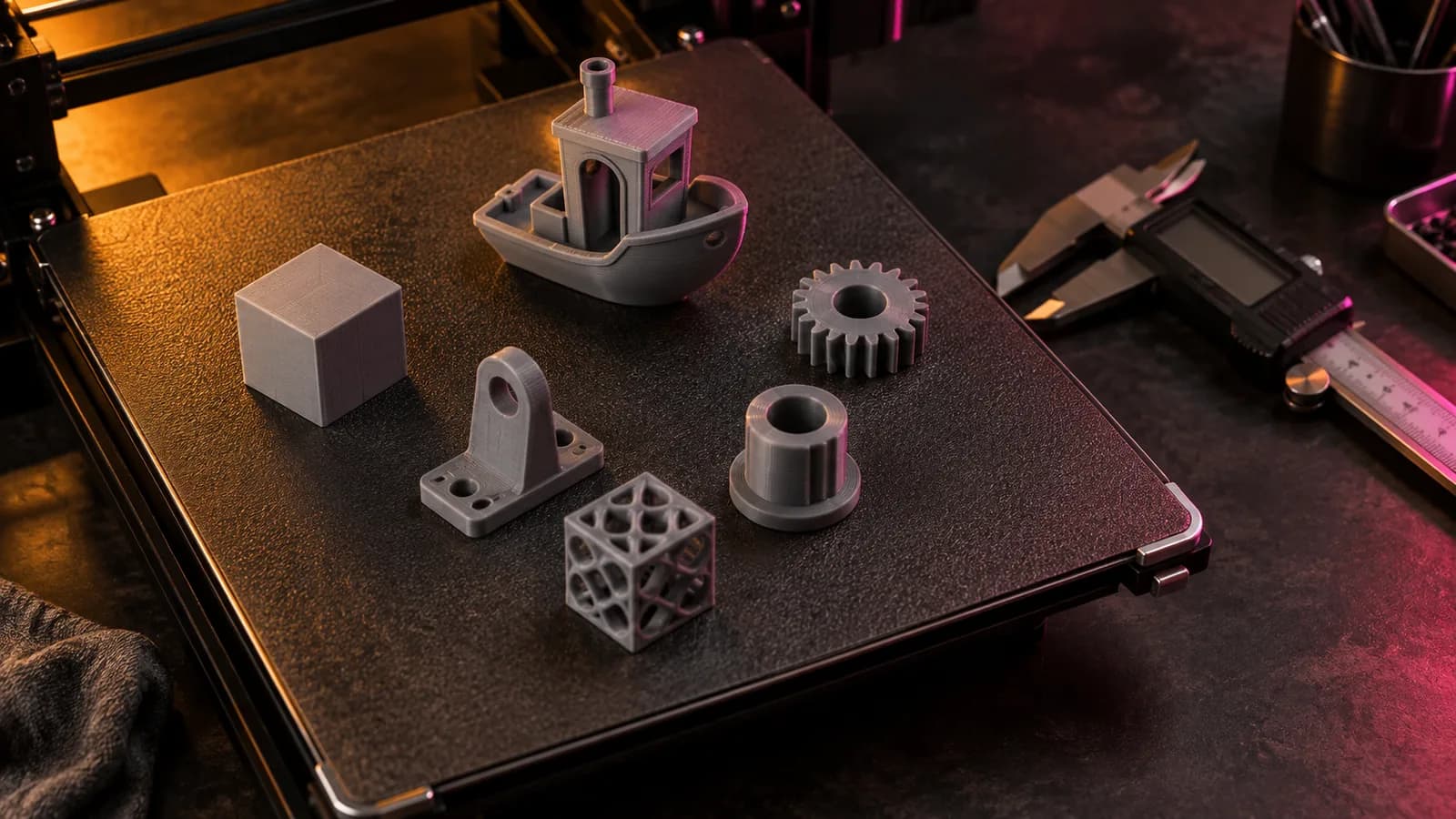
3D printing
How to Convert 3MF to STL: 4 Free Ways (No Upload Needed)
Convert 3MF to STL with a free in-browser converter, Bambu Studio, OrcaSlicer, PrusaSlicer, Cura or Blender, and what STL keeps from multi-object plates.
September 21, 2026 2 min read
3D printing
The Best STL Viewers for Windows, Mac, Android and iPhone (2026)
Free ways to open STL, OBJ and 3MF files in 2026 now that Microsoft 3D Viewer is gone: browser viewers, slicers, MeshLab, Blender and apps for phones.
September 24, 2026 3 min read

3D printing
How to Make a 3D Model From a Single Image With AI (2026)
Turn one image into a printable 3D model with AI: preparing the image, Hunyuan3D vs Meshy vs Tripo, licensing, and making the mesh watertight for printing.
September 21, 2026 2 min read