Filapaint and Other Free HueForge Alternatives: What Works in 2026
Free ways to make HueForge-style filament paintings: Filapaint in the browser, the Depthue filament painting planner, and when a paid tool is worth it.
By Depthue Lab3 min read
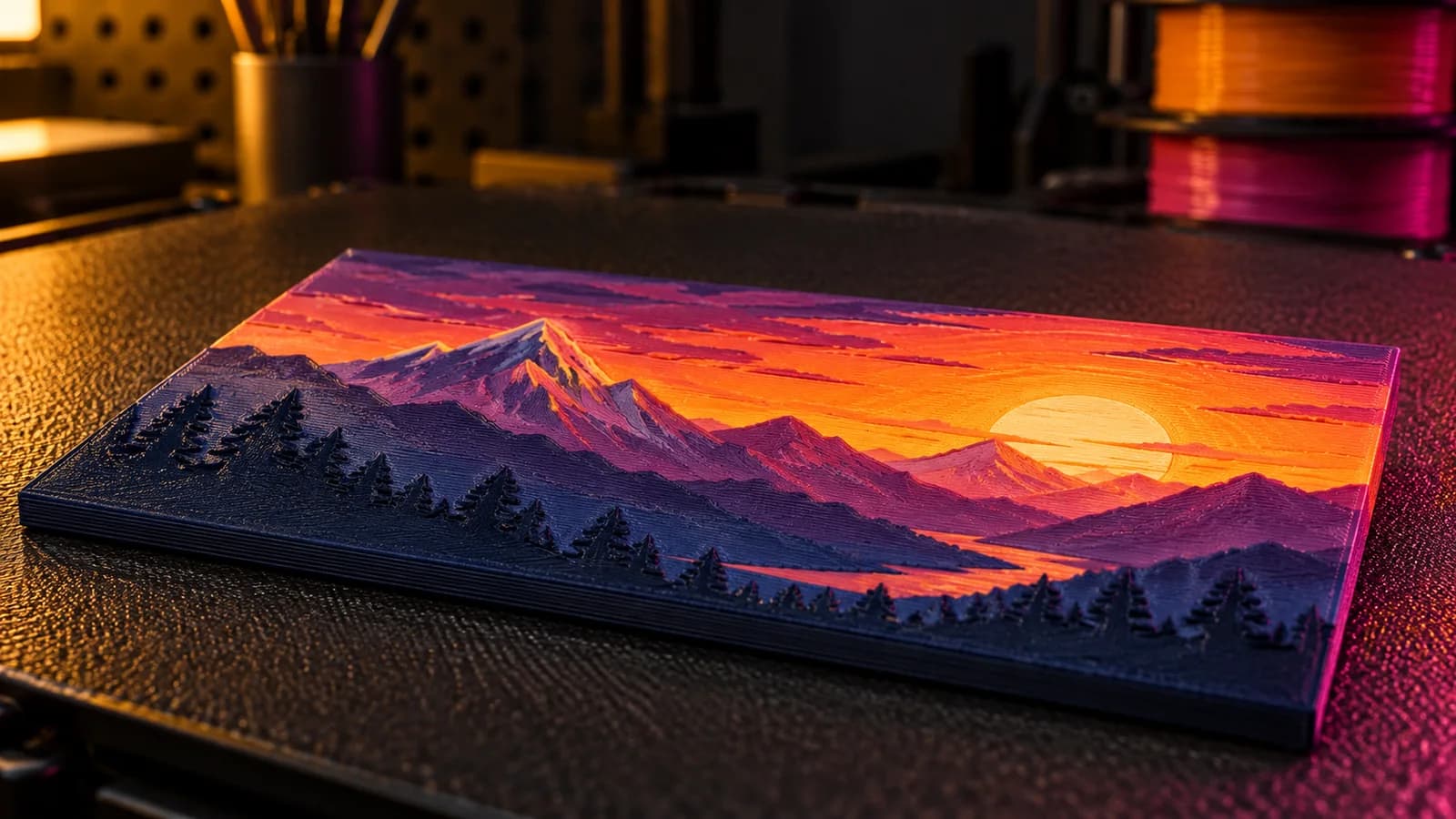
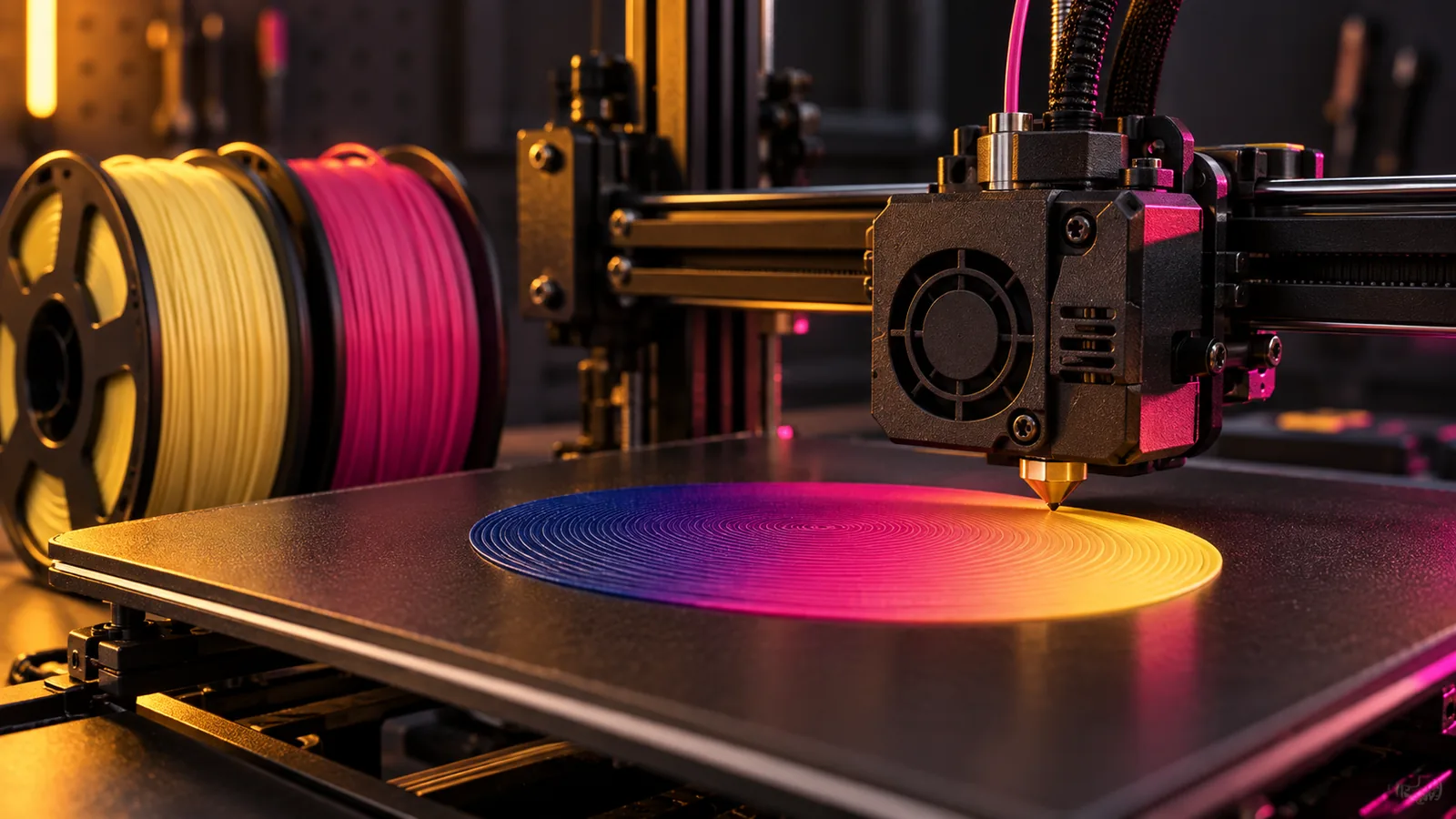
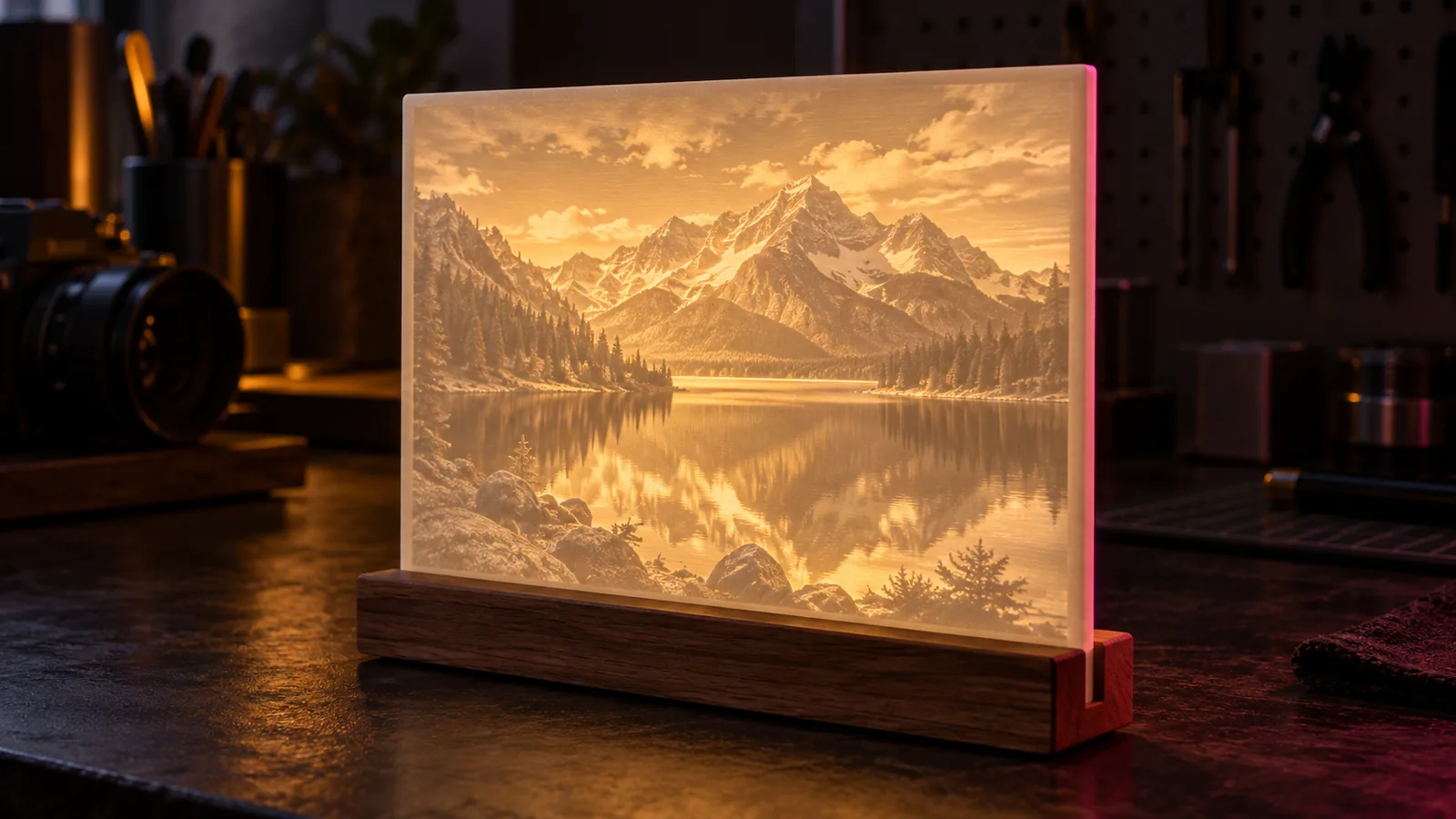
Filament painting, the technique HueForge made popular, prints a picture as a thin relief where each color is only a few layers thick. Light shines through the stacked plastic, and the thickness at each point decides how much of each color you see. The result looks painted, from a printer with one nozzle.
HueForge is the reference tool, and it is paid. If you want to try the technique for free first, these are the options that actually work.
Is HueForge free?
No. HueForge sells a one-time Personal licence for non-commercial use and commercial licences (annual, or a Professional lifetime option) for selling prints or files. It runs on Windows, macOS 12+ and Linux, and its FAQ does not mention a free trial. For many hobbyists the Personal licence is fair value; the free tools below are for learning the process or working without it.
Option 1: Filapaint (free, in the browser)
Filapaint, hosted at cxwl.org, is the best-known free alternative. You drop in an image, set layer height, detail, relief and base thickness, adjust contrast, and add color change layers with a blending distance for each material. It exports an STL you slice normally, adding the color changes at the heights you planned.
What to know:
- STL only. Colors are not stored in the file; you add the swaps in your slicer.
- Blending values need calibration. The developer notes that the default blending distances are rough estimates, so measure or look up your filaments.
- It is openly experimental. The site thanks users for testing and warns about bugs. Expect rough edges.
Option 2: the Depthue filament painting planner (free, no upload)
The filament painting planner runs in your browser without uploading the image. You choose your filaments and their TD values, and it simulates the stacked colors pixel by pixel, lists the exact layer and Z height of every swap, and exports the relief STL.
It is designed to answer the question that ruins most first prints: where exactly do I change filament? The swap list copies straight into your notes, with the Z height to find on the slicer's layer slider.
Option 3: a plain height map and manual swaps
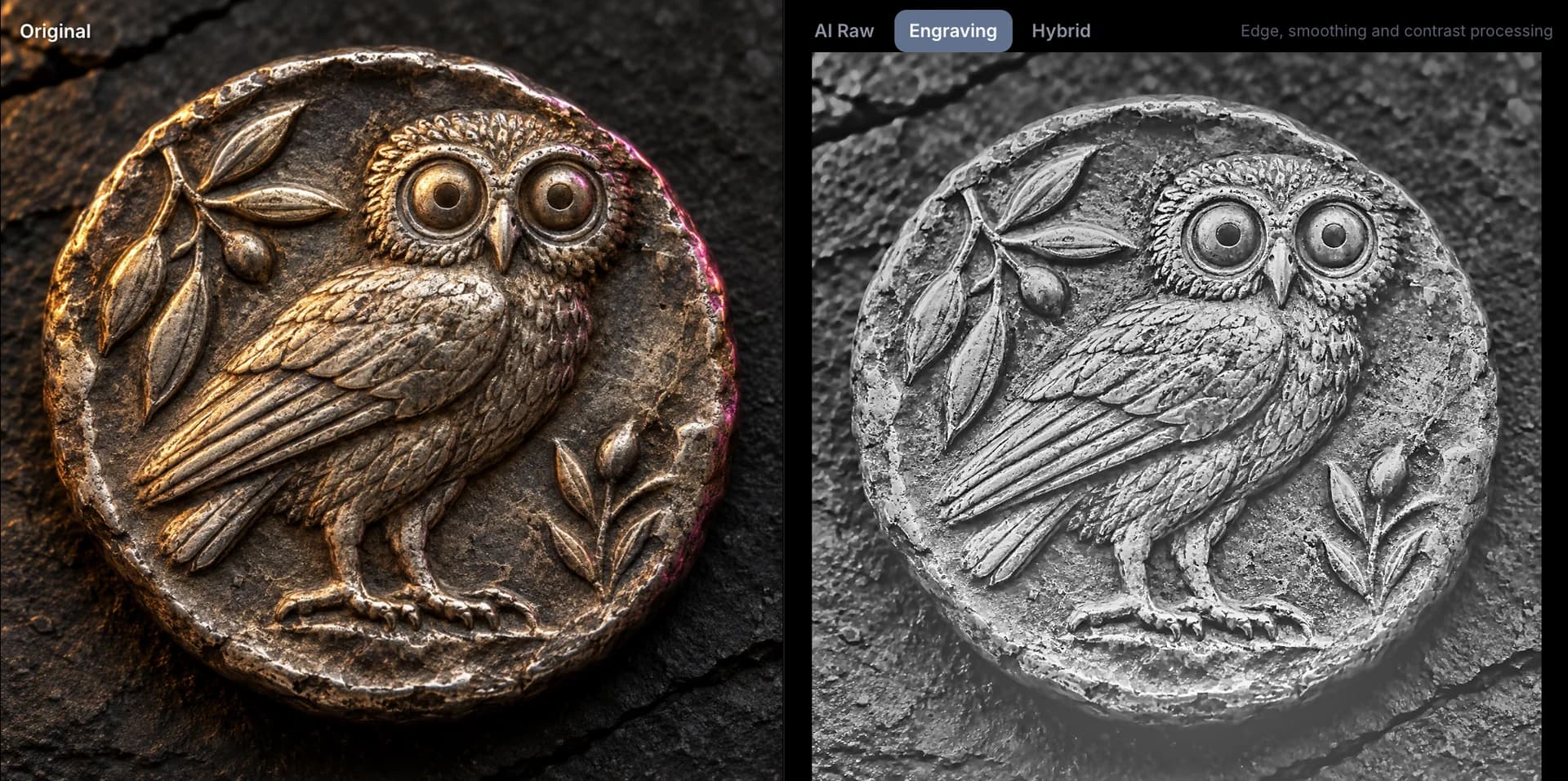
Any image-to-relief tool works if you plan the swaps yourself. Make a relief STL with the image to STL tool in Relief mode, slice at 0.08 mm layers, and add color changes where the brightness bands begin. It is slower to get right, but it teaches you how the stack behaves.
Free vs paid: where the line is
Free tools are fine for learning and occasional prints. The work gets harder when:
- You want the preview to match reality. That needs accurate TD values and a good blending model.
- You have no AMS. Guided manual swaps save failed prints.
- You print often. Planning colors from the filament you actually own saves money on test prints.
That is where VoxelPrime sits: a desktop app for $8, one time, that plans around your filament inventory, supports single-extruder printers with guided manual swaps and exports clean STL. It is not affiliated with HueForge and does not replace every HueForge feature; it is a cheaper, simpler path for the most common jobs.
For a full comparison of paid and free options, see HueForge alternatives compared.
Settings that work for a first print
| Setting | Starting value |
|---|---|
| Layer height | 0.08 mm |
| First layer | 0.16 mm |
| Infill | 100 percent |
| Base | 3 to 5 layers of the darkest filament |
| Total height | 1.6 to 2.4 mm |
| Filaments | 3 to 5, dark to light |
Print flat, face up, slowly (around 40 mm/s) and hold the result up to a window before you judge the colors: filament paintings are meant to be seen with light behind or across them.
Free tools for this job
Frequently asked questions
Is there a free version of HueForge?
No. HueForge sells a Personal lifetime licence and commercial licences, and its shop and FAQ do not list a free tier. Free alternatives include Filapaint in the browser and the Depthue filament painting planner.
What is Filapaint?
Filapaint is a free, browser-based tool at cxwl.org that turns an image into a layered relief STL with color change layers, similar in idea to HueForge. Its developer describes it as in active development, and material blending values need calibrating by the user.
Do free HueForge alternatives need an AMS?
No. Filament paintings can be printed on any single-extruder printer by pausing for a manual filament change at each swap height. An AMS or MMU only automates the swaps.
What is TD in filament painting?
TD, or transmission distance, is the thickness at which a filament hides what is beneath it. Low-TD filaments like black cover quickly; high-TD filaments like yellow and white stay translucent for several layers. Accurate TD values are what make the preview match the print.