Non-Manifold Edges: What the Warning Means and How to Fix It
What "Error: 3 non-manifold edges" means in Bambu Studio, OrcaSlicer and PrusaSlicer, when you can print anyway, and the fix that works on your computer.
By Depthue Lab7 min read
A non-manifold edge is an edge that does not join exactly two faces. The number in the warning is how many of them the slicer found. Slice the model and check the preview: if the walls and infill look right, print it. If they do not, repair the mesh in your slicer, a free browser tool or Blender.
What a non-manifold edge is
A printable model is a closed skin of triangles. On a closed skin every edge joins exactly two faces, one on each side, so the slicer can tell inside from outside on every layer. That is a manifold mesh. Where the rule breaks, the slicer has to guess.
There are three kinds of break, and each needs a different fix:
| Kind | What it is | Usual cause |
|---|---|---|
| Three or more faces on one edge | An extra surface hangs off the skin: a wall inside the model, a face lying on top of another, two parts touching along a line | Parts placed together without being joined, duplicated faces, failed booleans |
| One face on an edge (an open edge) | The rim of a hole or a hairline crack | Missing faces, seams that were never welded, scans |
| A bowtie vertex | Two parts that touch at a single point | Corners or tips that meet exactly |
Guides often call all three "non-manifold". Your slicer may not, and that is where the confusion starts.
What the number in the warning means
It is a count. "Error: 3 non-manifold edges" means the slicer found three such edges. A forum thread titled "Error 11376 Non-manifold Edges" is about 11,376 edges, not a code to look up. A big number is not a worse print, either: on a dense mesh one seam is made of thousands of tiny edges, and each one counts.
What gets counted depends on the slicer. We read the current source code of Bambu Studio, OrcaSlicer and PrusaSlicer, and UltiMaker's help page for Cura (November 2026):
| Slicer (version checked) | What it shows | What the number counts |
|---|---|---|
| Bambu Studio 2.9.1 | "Error: 3 non-manifold edges", sometimes with "non-manifold vertices"; holes appear separately as "Info: 8 open edges" | Edges shared by three or more faces. A non-manifold vertex is a bowtie. Open edges are only Info |
| OrcaSlicer 2.5.1 | "Error: 3 non-manifold edges." | Its open edge count, printed under the non-manifold label |
| PrusaSlicer 2.9.7 | "Auto-repaired 5 errors", then "8 open edges" under Remaining errors | Open edges. It never says non-manifold |
| UltiMaker Cura | No count | Faults "are often shown as red areas in the X-ray view" |
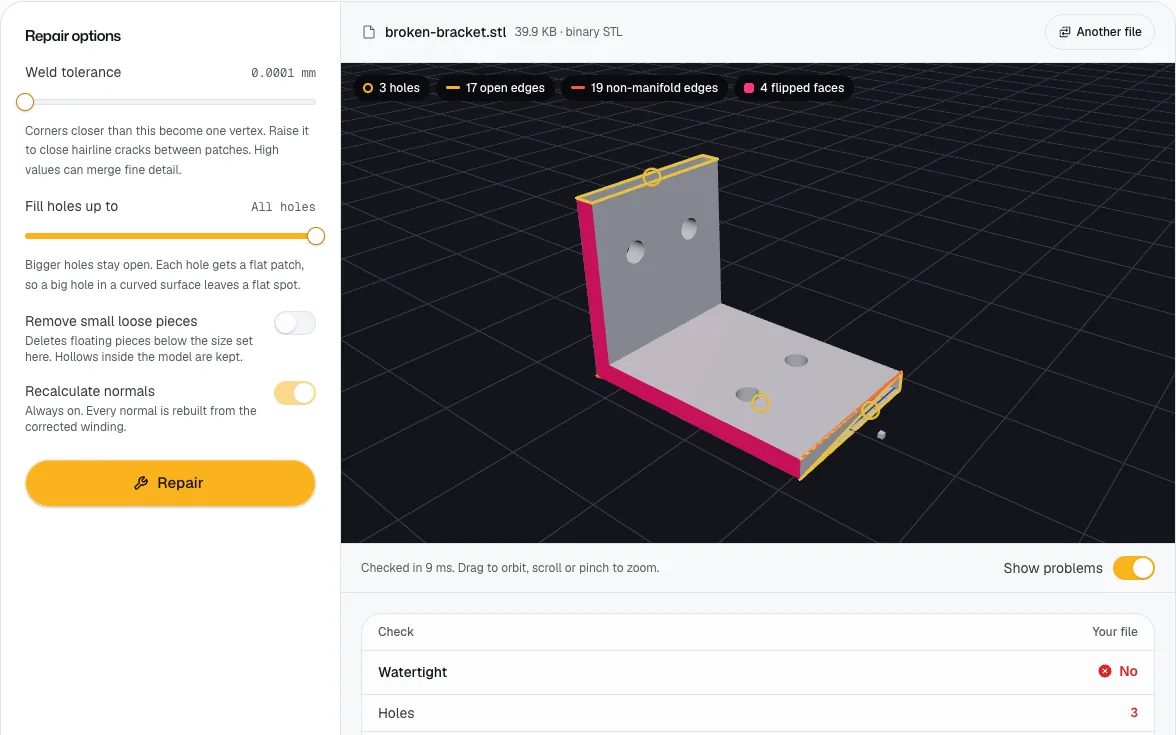
So the same file can show a different number in each slicer. A file with no warning in one can carry a warning in another. A tool that counts each kind on its own makes the difference visible: the broken bracket in the picture at the top of this page has 17 open edges and 19 non-manifold edges, two separate problems.
Can you print with non-manifold edges?
Often, yes. The warning marks places where the mesh is ambiguous. It does not say the print will fail. Bambu Lab's own answer, from its GitHub in June 2026: "It is not a blocking error. If your slicing and printing results are completely fine, you can safely ignore this diagnostic."
The test is the sliced preview, not the warning icon:
- Slice the plate.
- Open the preview and drag the layer slider slowly through the part of the model that is flagged.
- Look for missing walls or layers, a hollow part filled solid, infill or top surfaces where there should be none, and gaps in the outer wall.
- If every layer looks right, print it. If anything looks wrong, fix the mesh first.
It works the other way too. The Bambu Lab Wiki says Studio "can only detect and repair some errors", so a model with no warning can still slice wrong. Check the preview either way. Fix the file regardless when someone else will print it, such as a model you sell or upload: their slicer may count it differently.
Why Bambu Studio started flagging files that printed fine
In June 2026 a user reported on GitHub that Bambu Studio 2.7.1.62 showed the warning on nearly every file, including models that version 2.7.1.57 accepted. Bambu Lab replied that "the previous non-manifold edge detection algorithm was inaccurate. We corrected this in a recent update".
Bambu Studio's detector got stricter in that update, so the warning now appears on many more models, including files that printed fine before. That makes the preview test above more useful than the warning itself.
Fix it in your slicer
Each slicer has a one-click repair. Which computers get it differs:
| Slicer | Where the repair is | Computers |
|---|---|---|
| Bambu Studio | Right-click the object, Fix model; or the Repair link in the warning; or click the warning icon | Windows 10 and 11 only |
| OrcaSlicer 2.4 and later (menus as in 2.5.1) | Right-click the object, Modify, Fix Model. For every model on a plate: the plate's right-click menu, Modify, Fix All (or Fix All Plates) | Every platform |
| PrusaSlicer | Right-click, Fix by Windows repair algorithm | Windows 10 and 11 only |
| UltiMaker Cura | No repair button. The Mesh Fixes settings apply when you slice: Union overlapping volumes, Remove all holes, Extensive stitching, Keep disconnected faces | Every platform Cura runs on |
On Bambu Studio and PrusaSlicer the menu item is simply missing on macOS and Linux: the code only adds it on Windows 10 or 11. OrcaSlicer repairs with the open-source CGAL library instead, and its code allows the repair on any selected object.
After a repair, slice again and check the preview. The fix changes the model inside your project, not the file on disk, so export the model again (File, Export) if you want to keep the repaired copy.
No Windows? Repair it in your browser
The free STL repair tool runs on your own device and uploads nothing. It reads STL, OBJ and 3MF, counts open edges, holes, flipped faces and non-manifold edges separately, and marks each one on the model.
What it does with each kind:
- Open edges and holes: it welds corners that sit closer than the weld tolerance (raise it to close hairline cracks), closes T-junction seams and fills the holes that are left.
- Three faces on an edge, when the extra faces are junk: it removes duplicate triangles, removes the pair of faces where two parts touch face to face (joining them), and removes loose flaps that hang on an edge, but only when the flap is smaller than the surfaces it hangs on, so the model itself is never removed.
- What it leaves: an internal wall, or parts touching along an edge. The tool says so in its report: "Three or more triangles meet there: parts touching along an edge, or a wall inside the model. Slicers usually print it." Those go to Blender or a Boolean union.
- What it does not check: self-intersections and bowtie vertices.
After the repair it checks the result again from scratch and shows Before and After counts. Download the repaired STL and slice it.
Fix each kind by hand in Blender
Blender is free, and it lets you see each kind separately.
- Import the model with File, Import, STL.
- Press Tab for Edit Mode and switch to edge select (press 2).
- Open Select, Select All by Trait, Non Manifold. In the options panel, tick one type at a time.
- Fix what each type selects:
| Option | What it selects (Blender's words) | Fix |
|---|---|---|
| Boundaries | "Selects edges at boundaries and holes." | Mesh, Clean Up, Merge by Distance first to weld split seams, then Mesh, Clean Up, Fill Holes |
| Multiple Faces | "Selects edges that belong to three or more faces." | Use Select All by Trait, Interior Faces and delete those faces. For two parts touching, join them with a Boolean modifier set to Union, overlapping them slightly first so they share volume, not just an edge |
| Wire | "Selects edges that do not belong to any face." | Mesh, Clean Up, Delete Loose |
| Non Contiguous | "Selects edges that belong to exactly two faces with opposite normals." | Mesh, Normals, Recalculate Outside (Shift + N) |
| Vertices | Includes a vertex that is "the only vertex connecting two faces": a bowtie | Separate the two parts, or overlap them and join them with a Boolean union |
- Run Select All by Trait, Non Manifold again with every option ticked. Nothing selected means the mesh is closed.
- Export with File, Export, STL.
The shortcut is the free 3D Print Toolbox extension (version 1.5.0, for Blender 4.2 and later). Open the sidebar with N, go to the 3D-Print tab, run the checks, then click Make Manifold. It attempts to fix bad normals, fill holes and remove empty edges and faces. That description does not cover internal walls or parts touching along an edge, so check those by hand afterwards.
Stop it happening at export
- Join parts into one solid in your CAD program before you export, instead of placing them against each other.
- Export one body per file, or union the bodies first.
- In Blender, run the toolbox checks before you export.
The export settings for Fusion, Blender and Tinkercad are in how to fix STL files, along with holes, flipped normals, self-intersections and the other errors this page does not cover.
Next step
Slice the model and read the preview first. If it needs a fix and you are not on Windows, drop it into the STL repair tool, then confirm the size in the STL viewer before you print. Before slicing a whole plate, the print checks in Depthue Studio test for a closed solid and thin walls (a free account is needed).
Free tools for this job
Frequently asked questions
What does "Error: 3 non-manifold edges" mean?
It is a count. In Bambu Studio it means three edges are each shared by three or more faces. In OrcaSlicer the same message counts open edges, the rims of holes and cracks.
Can I print a model with non-manifold edges?
Often, yes. Slice it and check the preview layer by layer. Bambu Lab says the warning is not a blocking error and can be ignored when slicing and printing look fine.
Should you repair non-manifold edges?
Repair them when the preview shows missing walls, a hollow part filled solid or stray infill, or when someone else will print the file, because their slicer may count it differently.
Why does Bambu Studio show non-manifold edges on files that printed fine before?
Bambu Lab says its earlier non-manifold edge detection was inaccurate and was corrected in an update in mid 2026. The stricter detector now flags many more models, including files that printed fine before.
How do I fix non-manifold edges on a Mac?
Bambu Studio and PrusaSlicer offer their repair only on Windows. On a Mac, use Fix Model in OrcaSlicer 2.4 or later, a browser repair tool such as Depthue's free STL repair, or Blender's 3D Print Toolbox.
How do I fix non-manifold edges in Blender?
In Edit Mode, use Select, Select All by Trait, Non Manifold to find them, then fix each kind: Merge by Distance and Fill Holes for boundaries, delete interior faces or join parts with a Boolean union for multiple faces. Make Manifold in the free 3D Print Toolbox does much of this in one click.
What is the difference between non-manifold edges and open edges?
A non-manifold edge in Bambu Studio has three or more faces; an open edge has only one, like the rim of a hole. Bambu Studio reports open edges separately as Info, while OrcaSlicer counts them as non-manifold edges.
Why did repairing fill my hollow model solid?
An automatic repair has to guess which side is inside, and on a broken mesh it can guess wrong. Keep the original file, compare the repaired preview, and fix the mesh in Blender or the source file if the repair changes the shape.
What is a manifold mesh?
A mesh where every edge is shared by exactly two faces, so it forms one closed skin with a clear inside and outside. Slicers need that to decide what to fill on each layer.
Sources
- Bambu Studio v02.09.01.70 source, mesh error messages (GUI_ObjectList.cpp)
- Bambu Studio v02.09.01.70 source, Fix model menu, Windows only (GUI_Factories.cpp)
- Bambu Studio v02.09.01.70 source, mesh diagnostics (MeshDiagnostics.cpp)
- Bambu Studio issue 11224, Manifold Edges Error (June 2026)
- Bambu Lab forum, Error 11376 Non-manifold Edges
- Bambu Lab Wiki, Fix Model
- OrcaSlicer v2.5.1 source, mesh error messages (GUI_ObjectList.cpp)
- OrcaSlicer v2.5.1 source, Fix Model and Fix All menus (GUI_Factories.cpp)
- OrcaSlicer v2.5.1 source, CGAL repair availability (Plater.cpp)
- PrusaSlicer 2.9.7 source, mesh error messages (GUI_ObjectList.cpp)
- PrusaSlicer 2.9.7 source, Fix by Windows repair algorithm menu (GUI_Factories.cpp)
- UltiMaker Support, Mesh fixes settings
- Blender Manual, Select All by Trait
- Blender Manual, Clean Up
- Blender Manual, Normals
- Blender Manual, Boolean Modifier
- Blender Extensions, 3D Print Toolbox
- Blender Manual 4.1, 3D Print Toolbox