16-Bit vs 8-Bit Depth Maps for LightBurn 3D Sliced Engraving
When a 16-bit depth map improves a LightBurn 3D Sliced engraving, when 8-bit is enough, how passes relate to gray levels, and how to check a file's bit depth.
By Depthue Lab3 min read
If your job runs 256 passes or fewer, an 8-bit depth map is already enough. A 16-bit depth map pays off only when you run more than 256 passes in LightBurn 2.1 or newer, and only when the map was generated with more than 256 levels in the first place.
That is the whole answer. The rest of this guide explains why, so you can decide for your own material and runtime.
How 3D Sliced mode turns grays into depth
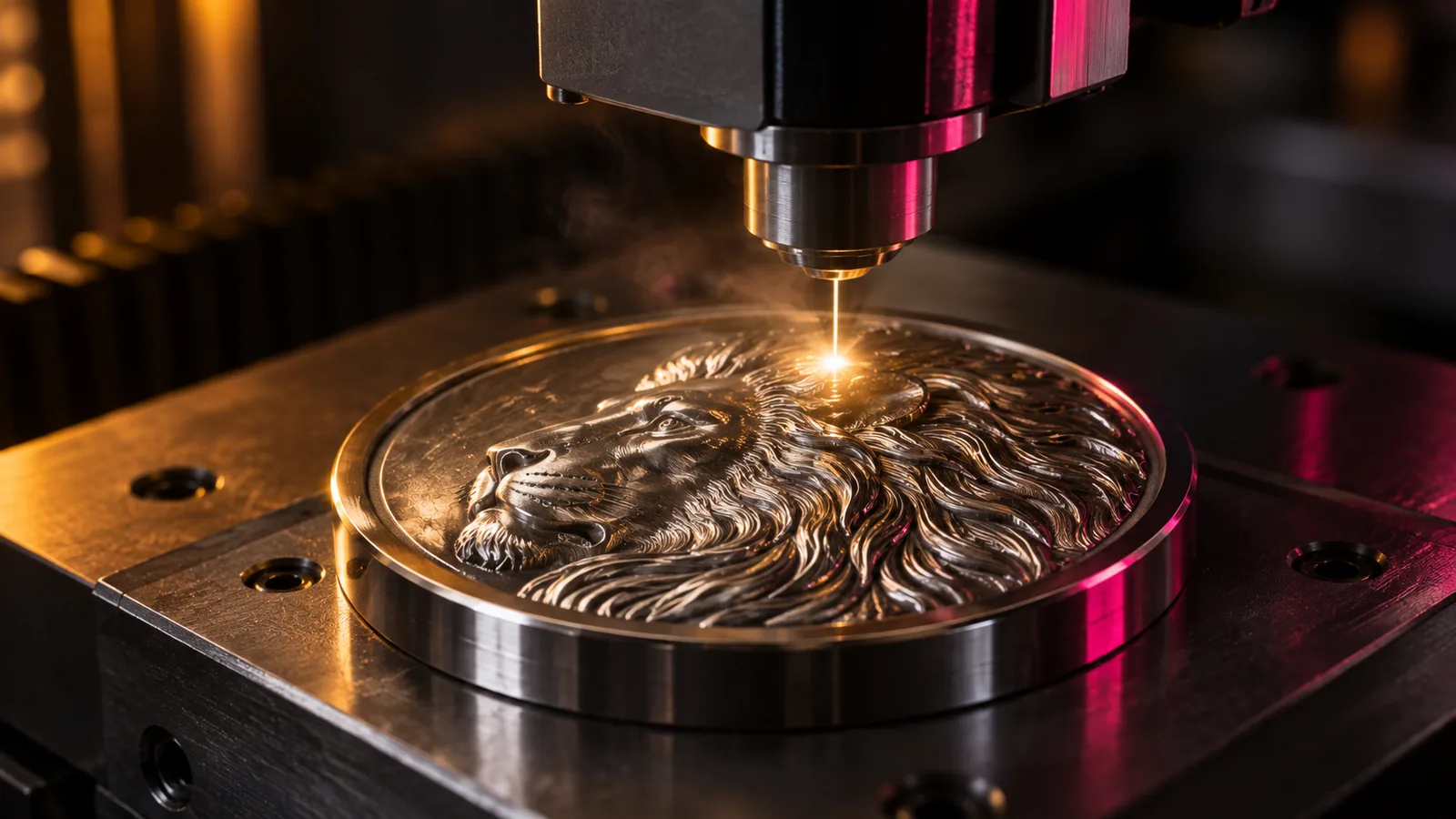
LightBurn's 3D Sliced mode is a galvo feature. Instead of varying laser power per pixel, it runs the image as a stack of passes. On each pass it moves a threshold through the gray range and only fires on pixels darker than that threshold. Black pixels are hit on every pass and end up deepest; white pixels are never hit and stay at the surface.
So there are two separate numbers:
- Passes decide how many times the laser can cut a new step.
- Bit depth decides how many distinct gray values exist for those steps to follow.
The arithmetic
An 8-bit grayscale image stores 256 values. A 16-bit image stores 65,536.
| Passes | Gray levels per step (8-bit) | Gray levels per step (16-bit) |
|---|---|---|
| 64 | 4 | 1,024 |
| 128 | 2 | 512 |
| 256 | 1 | 256 |
| 512 | 0.5, so steps repeat | 128 |
| 1,024 | 0.25, so steps repeat | 64 |
Up to 256 passes, an 8-bit map gives every pass at least one new gray level to follow, so the output has as many distinct steps as you asked for. Above 256, an 8-bit map runs out: passes start repeating the same threshold, which adds depth but not smoothness. A 16-bit map keeps producing new steps, which is where smoother slopes on coins and faces come from.
When 16-bit is worth the runtime
Use a 16-bit map when all of these are true:
- You run LightBurn 2.1 or newer on a galvo laser.
- You plan to run more than 256 passes, typically 500 to 1,000 for deep metal relief.
- The depth map was generated in 16-bit by the tool that made it.
- A test engraving at 8-bit shows visible terracing on gentle slopes, and that terracing is not caused by focus, line interval or the material.
If any one of these is missing, stay at 8-bit. You will get the same result faster.
The conversion trap
The most common 16-bit mistake is converting after the fact. If a map was generated or saved as 8-bit, opening it in an editor and switching to 16-bit only relabels the file. It still contains 256 distinct values; the new container has room for more, but nothing fills it.
The same thing happens by accident. Screenshots, messaging apps, some browser editors and many online converters quietly reduce images to 8-bit. Always import the original export.
How to check: LightBurn reports the imported image's bit depth. You can also count unique gray values with an image tool: a true 16-bit map from an AI model has thousands; a converted one has at most 256.
What about gantry lasers?
On a diode or CO2 gantry laser, depth maps are engraved in grayscale power mode rather than 3D Sliced mode. Here the limit is not the file: laser power steps, the material's burn response and the line interval blur fine differences long before 256 levels run out. An 8-bit PNG is the right default.
Getting a real 16-bit map
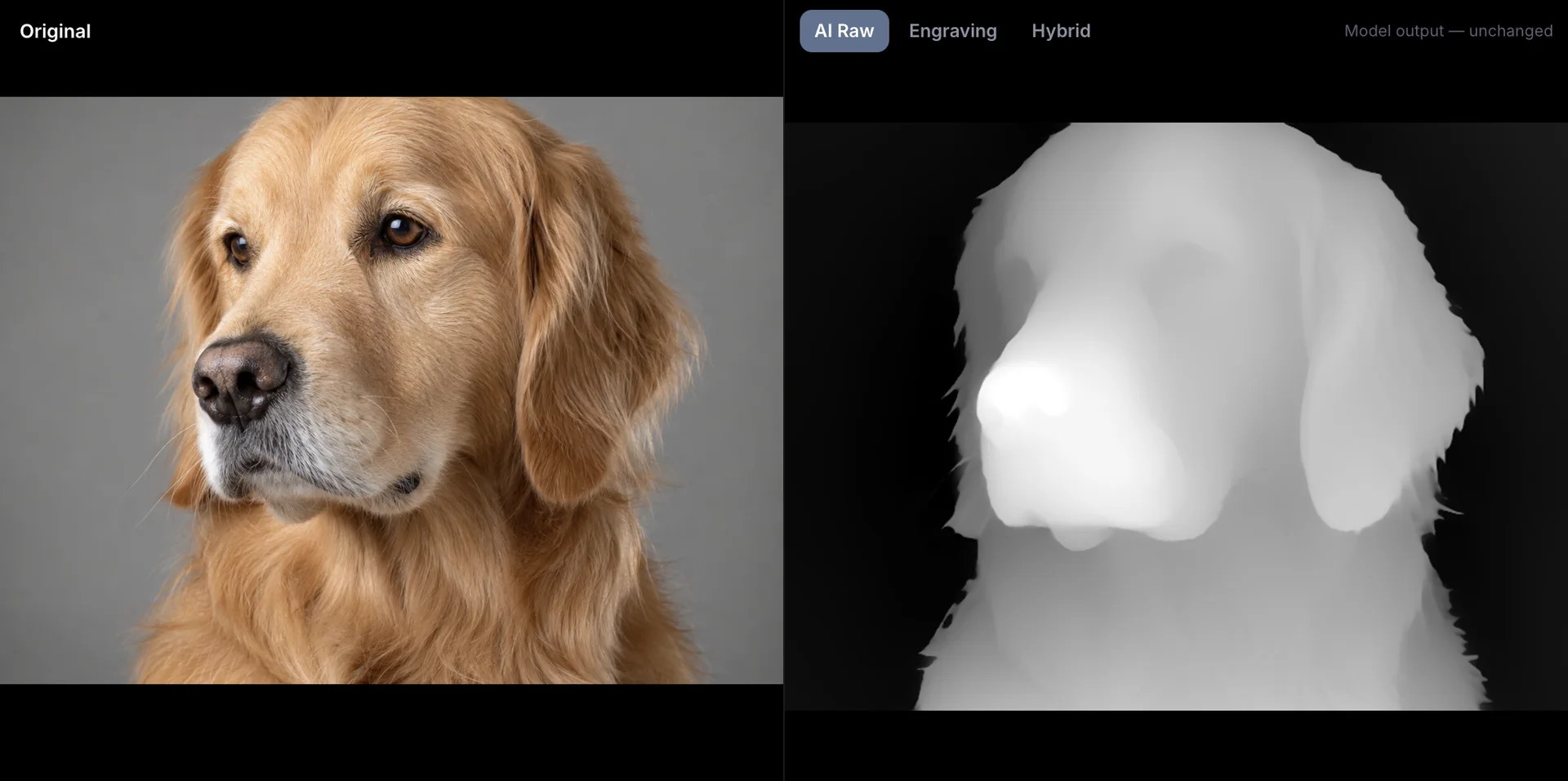
The free depth map generator exports 8-bit PNG, which covers most work. For true 16-bit PNG and 32-bit EXR, DepthGen Pro keeps the model's full precision through editing and export, and its Coin / Relief mode is built for exactly the metal relief jobs where 16-bit helps.
A test that settles it
Run the same small section twice, changing only the file:
- Same material, focus, speed, power, frequency and line interval.
- Same pass count, above 256.
- One 8-bit export, one 16-bit export of the same map.
Compare the shallow slopes: cheeks, coin fields, the curve of a shoulder. If you cannot see a difference, you have your answer for that material, and you can save the runtime.
Free tools for this job
Frequently asked questions
Does LightBurn support 16-bit depth maps?
Yes. LightBurn 2.1 added 16-bit depth map support for 3D Sliced engraving on galvo lasers. Earlier versions reduce every image to 8-bit.
How many passes should I use for a 3D Sliced engraving?
It depends on the material and target depth. With an 8-bit map, going beyond 256 passes adds depth but no finer steps. With a true 16-bit map, 500 to 1000 passes can produce visibly smoother slopes, at the cost of runtime.
How do I know if my PNG is really 16-bit?
LightBurn shows the imported image's bit depth. Outside LightBurn, check the image mode in an editor. A true 16-bit map also contains far more than 256 distinct gray values; a file that was converted from 8-bit still has only 256.
Should I use 16-bit on a diode or CO2 gantry laser?
Usually not. Gantry lasers engrave depth maps in grayscale power mode, and the laser's power resolution and the material's response limit detail long before 256 levels do.