Free Depth Map Generator for Laser Engraving, CNC and 3D Printing
Three free ways to turn a photo into a depth map for laser engraving, CNC and 3D printing: an AI generator in your browser, a free Windows app, and more.
By Depthue Lab3 min read
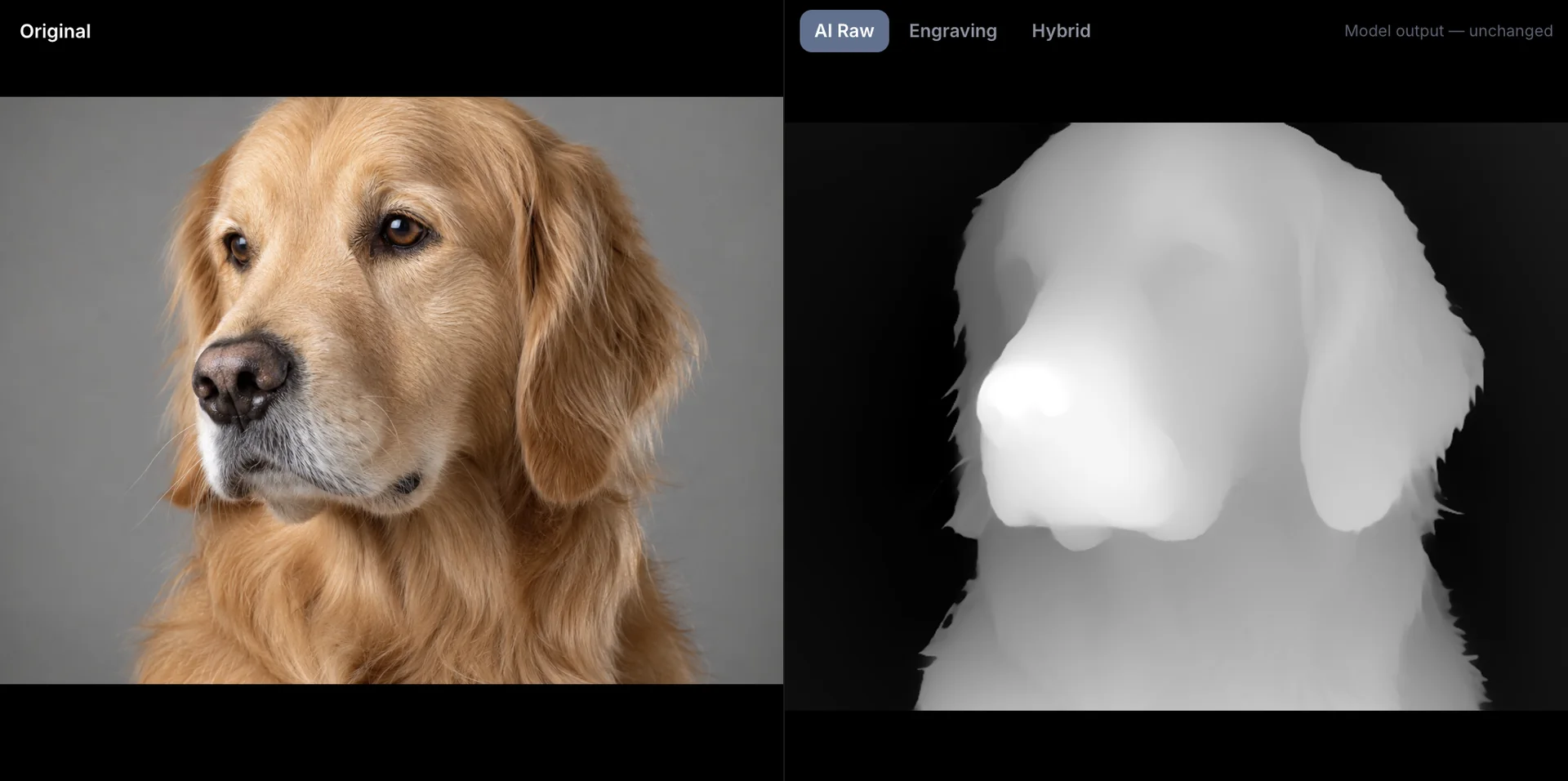
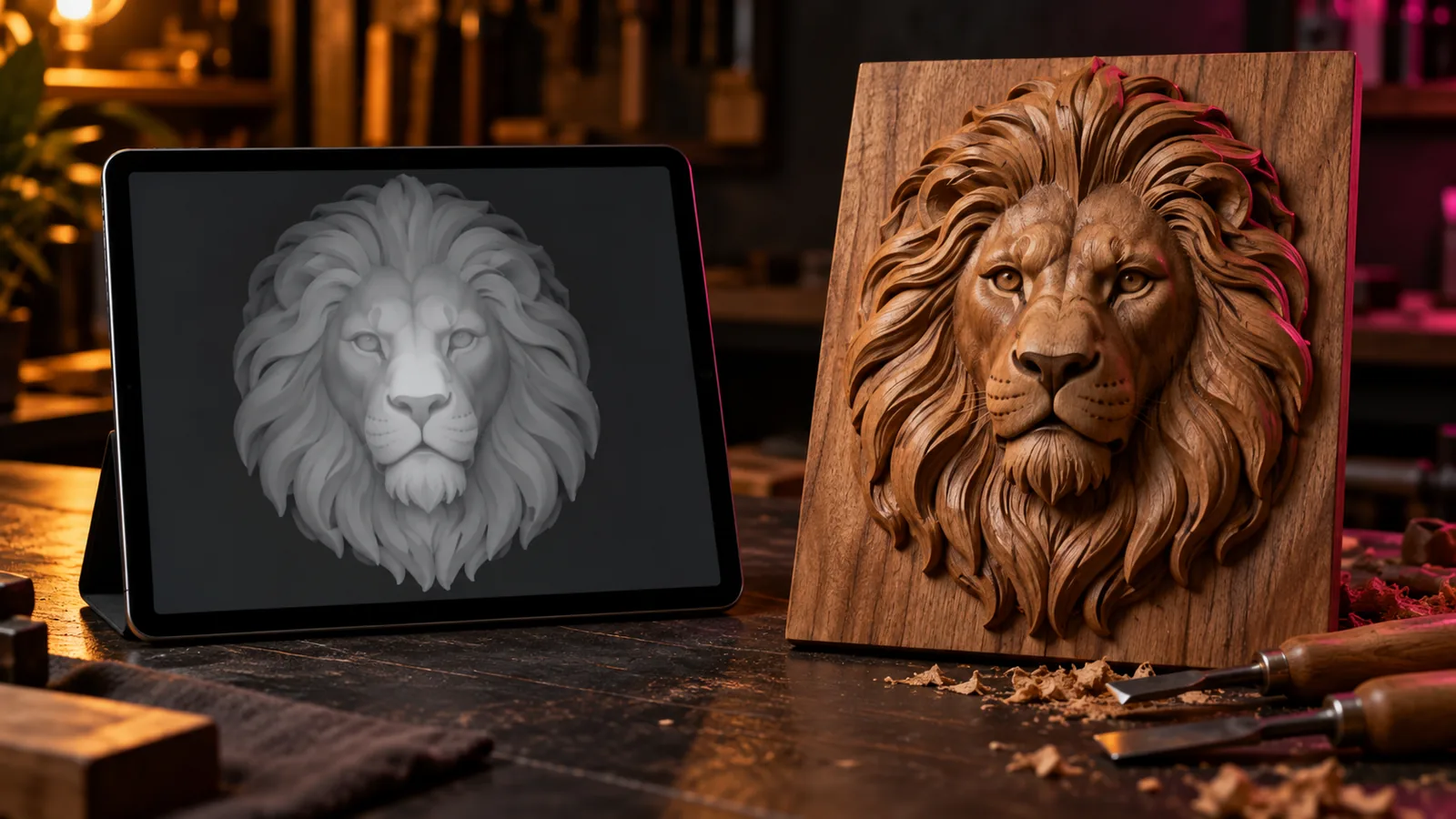
A depth map is a grayscale image where brightness means distance: white is the part nearest to you, black is the part farthest away. Laser software, CNC CAM and slicers read that brightness as height, so a good depth map is the difference between a portrait that looks carved and one that looks like a smudge.
You do not need to pay to make one. Here are the free routes, what each one is good at, and where each one stops.
Option 1: an AI depth map generator in your browser
The generator below runs Depth Anything V2, an open depth-estimation model, directly in your browser. The model downloads once (about 25 MB) and is cached, then every image is processed on your own computer. Nothing is uploaded, there is no account, and there is no daily limit.
How to get a good result:
- Start with a clean subject. A pet, a face, a building or a statue against a simple background gives the model an easy job. Busy backgrounds become lumpy terrain.
- Pull the black point up until the background turns black. On a relief you usually want a flat base, and the black point slider is the fastest way to get it.
- Add detail from the photo, but not too much. AI depth is smooth by nature. 20 to 35 percent detail puts fur and fabric back without turning shadows into holes.
- Use Invert only for negative engravings. Wax seal stamps and molds need the relief pressed in rather than raised.
When you are happy, download the PNG for LightBurn, Vectric Aspire or Carbide Create, or download the STL relief for a slicer.
Option 2: DepthGen Free Edition (offline, Windows)
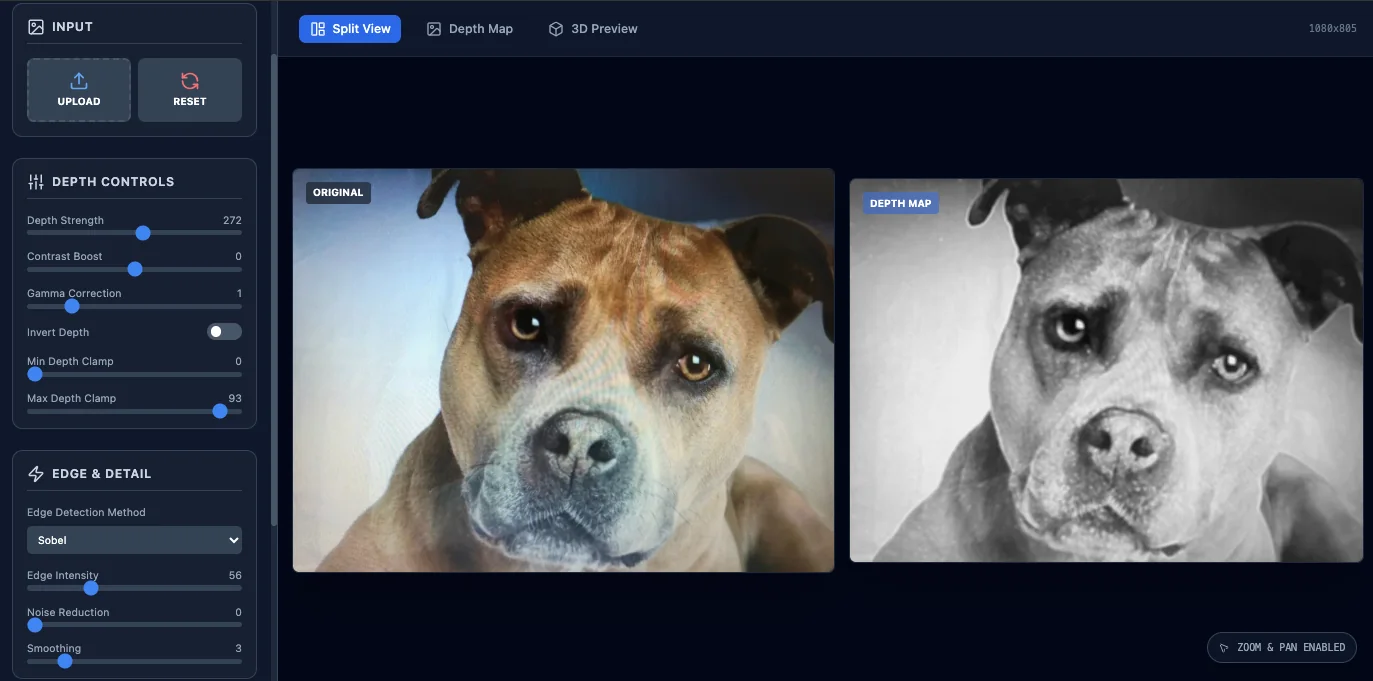
If you prefer an installed program that never needs the internet, DepthGen Free Edition is the original v1.0 release of DepthGen, kept free. It uses classic image processing rather than AI: depth strength, contrast, gamma, clamping, Sobel, Laplacian and Canny edge enhancement, smoothing, a 3D relief preview, and PNG or STL export.
It has no licence key, no watermark and no time limit. It also no longer receives updates, and because it reads brightness rather than shape, it can invert dark clothing or flatten faces the way any non-AI method does. For logos, line art and high-contrast images it is genuinely enough.
What free tools cannot do well
Free tools are honest for most hobby work. They struggle in four places:
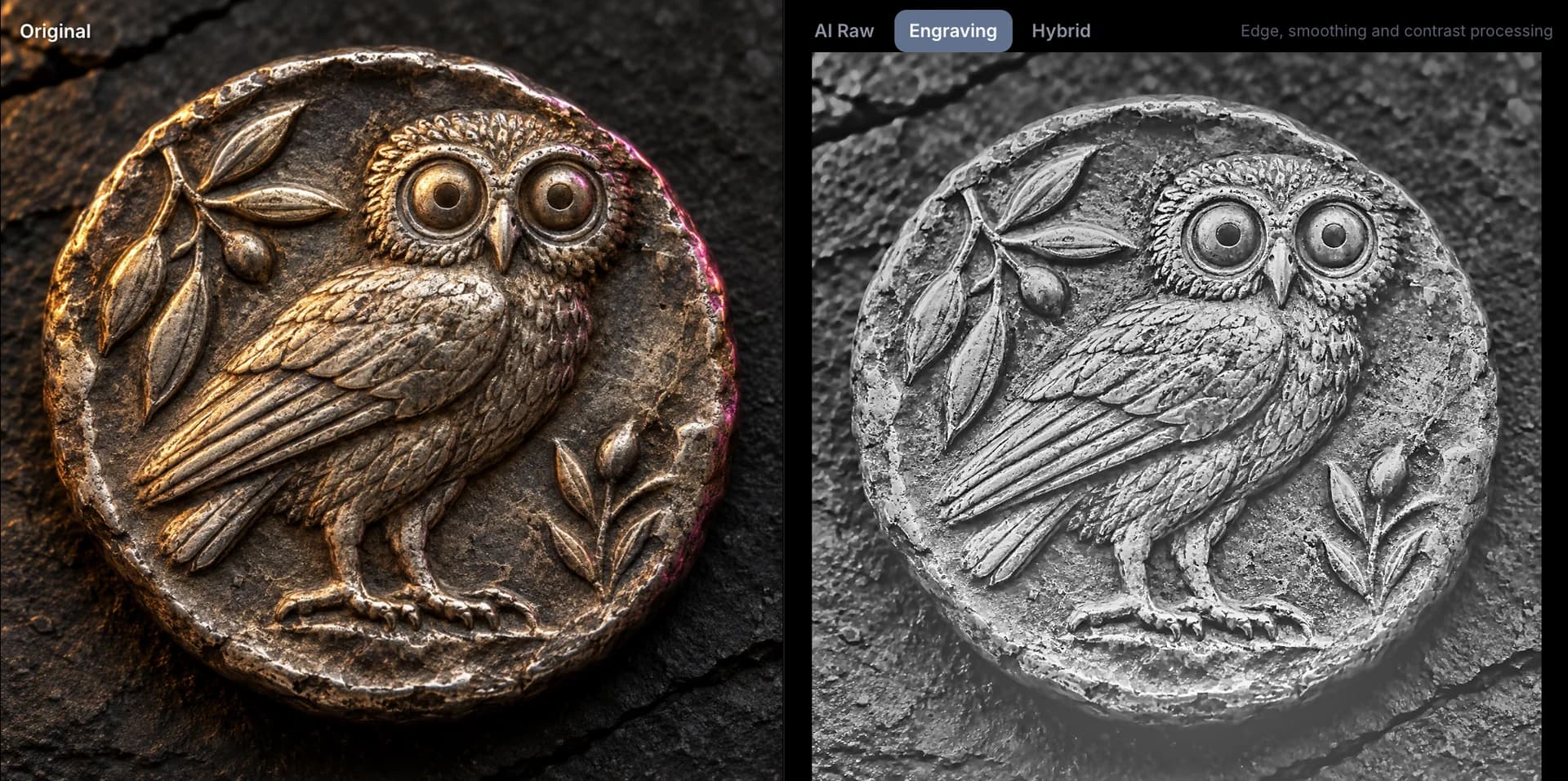
- Coins, medals and carved plaques. A camera sees a coin as a flat disc, so general models give it one flat depth. Recovering the relief needs a different method that reads the shading of the metal itself.
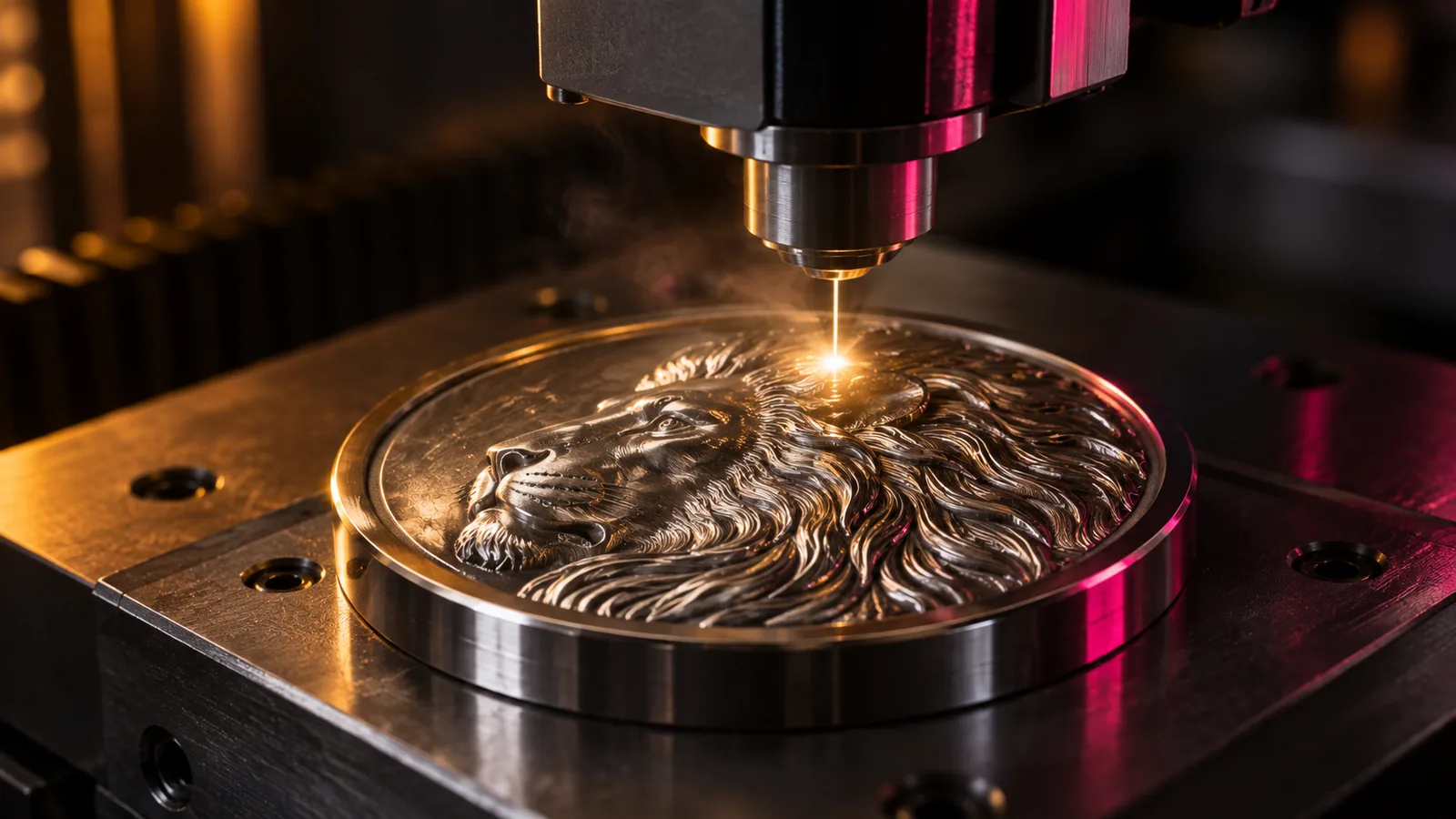
- Precision for deep galvo relief. Browser output is an 8-bit PNG, which holds 256 depth levels. That covers LightBurn 3D Sliced jobs up to 256 passes. Beyond that you need a true 16-bit export, explained in our 8-bit vs 16-bit guide.
- Fixing mistakes by hand. When the model gets an ear or a muzzle wrong, you need a height brush. Otherwise you are editing the map in Photoshop.
- Volume. Processing fifty customer photos one at a time in a browser tab is slow. Batch processing saves hours.
That list is exactly what DepthGen Pro adds: three local AI models, a photometric relief engine for coins, detail transfer, a non-destructive height brush, 16-bit PNG, EXR, watertight STL and OBJ, and batch processing, for one payment on Windows and macOS.
Which free option should you use?
| Your job | Best free option |
|---|---|
| Pet or portrait photo for a wood engraving | Browser AI generator |
| Logo or line art relief | Either; DepthGen Free is enough |
| No internet at the workshop | DepthGen Free Edition |
| Lithophane from a photo | Lithophane maker |
| Coin, medal or wax seal | Neither does it well; see DepthGen Pro |
Using the depth map in your software
- LightBurn (galvo, 3D Sliced): import the PNG, set the image mode to 3D Sliced and choose passes by material and depth. Start around 100 to 200 passes on metal.
- LightBurn (gantry diode or CO2): use Grayscale mode with minimum power at 0 percent and maximum power high enough to reach your target depth.
- Vectric Aspire or VCarve: import the PNG as a component (height map) and set the height in millimetres.
- Slicers: most slicers import a PNG as a height map, but the STL export from the tool above gives you control over size, base and relief height.
For a full walkthrough of the manual method, read how to make a depth map from a photo.
Free tools for this job
Frequently asked questions
Is there a completely free depth map generator?
Yes. The Depthue depth map generator is free with no signup, no watermark and no daily limit. It runs the Depth Anything V2 model in your browser, so the photo never leaves your device. DepthGen Free Edition is a second free option that installs on Windows and works offline.
Can I use a free depth map for laser engraving?
Yes. Export the depth map as a grayscale PNG, import it into LightBurn and use 3D Sliced mode on a galvo laser or a grayscale power ramp on a gantry laser. White areas stay highest and black areas are engraved deepest.
What is the difference between a depth map and a grayscale photo?
A grayscale photo stores brightness. A depth map stores distance, where white is closest and black is farthest. A dark shirt in the foreground is dark in a photo but white in a depth map, which is why a converted photo carves the wrong shape.
Why does my coin come out flat?
General depth models see a coin as one flat disc facing the camera, so the relief details get almost no depth. Coins, medals and plaques need a relief-specific method, such as the photometric relief engine in DepthGen Pro.